Getting started with AI Tracker
AI Tracker by Marketer Coffee is an AI search monitoring tool that asks ChatGPT, Google AI Overviews, Google AI Mode, Gemini, Perplexity and Claude the questions your buyers ask, and records whether your brand appears, where, how and with which sources.
This documentation explains every screen of the app at ai.marketercoffee.com. It also explains how each metric is calculated. Read it in order the first time. Later, use the table of contents to jump to one feature.
Create an account
An AI Tracker account is free to create and starts on the Free plan.
- Open ai.marketercoffee.com/signup.
- Enter your name, email and a password of at least 8 characters. Accept the Terms and Privacy Policy.
- Answer the short welcome survey. You pick the AI models you want, your role, your function and how you heard about AI Tracker. Then you choose a goal: understand your AI visibility, compare with competitors, find what to improve, or track and report progress.
- You receive a welcome email with a link to the app and to the example project.
Every account can open a full example project for the brand Marketer Coffee. It shows every report with real data. Use it to learn the app before your own data arrives.
Free snapshot
The free snapshot is a one-time check of 5 buyer questions about your brand on ChatGPT, with no card required.
- After sign-up, enter your website. The brand name is optional. AI Tracker reads it from the domain if you leave it empty.
- Pick the market (country) and the language of the questions.
- Click Check my brand. AI Tracker finds your competitors, writes 5 buyer questions and reads ChatGPT’s answers.
- Wait about 10 minutes. The page refreshes by itself. You also get an email when the first results are in.
On the Free plan, the Overview and All prompts pages of your snapshot are open. The other pages are locked. Each locked page links to the same page in the full example.
7-day free trial
The free trial gives you 7 days of daily tracking on a paid plan, and you pay nothing if you cancel before day 8.
- Click Start 7-day free trial in the top bar, the snapshot banner or any locked page.
- Choose a plan and enter a card at checkout. The card is required, but you are not charged during the trial.
- Add more buyer questions in project settings and tick the AI models to track. Click Save.
- Daily tracking picks up your prompts within 24 hours. Or click Run wave to measure right away.
During the trial these caps apply: 25 prompts, 1 project, 3 models and 1 manual run. The top bar shows how many trial days are left. Click Upgrade now to end the trial today. You pay for the plan right away and get its full limits.
Onboarding wizard
The onboarding wizard builds a new project in about two minutes: it reads your site, suggests topics, prompts and competitors, and starts the first check.
Open it with New project. The steps are:
- Domain. Enter your website. Add any other domains the brand owns. Citations of those domains count as yours.
- Brand name. Add other spellings and aliases so AI Tracker catches every mention.
- Country and language. The country is where AI engines answer from, not where your office is. Prompts are written in the selected language.
- Brand profile. AI Tracker reads your site and the web, then shows a description, the category (your specific niche), brand identity, products and services, personas and aliases. Edit anything that is wrong.
- Markets. Pick your most important markets. They are reflected in the prompts.
- Topics. Review the generated topics. Remove the ones that do not fit or add your own.
- Prompt focus. Choose Research, Comparing options or Ready to buy. Set the share of branded prompts, the intent mix (informational, commercial, transactional) and prompts per topic (8, 12 or 20).
- Prompts. Review the generated prompts with their branding, intent and persona.
- Competitors. AI Tracker finds competitors on the web. Remove or add competitors. Their visibility and share of voice are tracked next to yours.
- Models. Pick up to 3 AI models and keep “run the first wave right away” ticked.
Write prompts the way a customer asks, not the way an SEO writes keywords. “Which CRM is best for a 10-person agency?” is a better prompt than “best crm agency”.
Plans, limits and AI models
AI Tracker plans are sold as a number of prompts with any 3 AI models, checked once a day.
| Plan | Price | Prompts | Projects | AI answers a month | Extra manual runs |
|---|---|---|---|---|---|
| Basic | $79 / month | 50 | 1 | 4,500 | 2 / month |
| Growth | $179 / month | 150 | 2 | 13,500 | 5 / month |
| Scale | $399 / month | 350 | 5 | 31,500 | 10 / month |
Every feature is in every paid plan. Plans differ in prompts, projects, manual runs and team access. Competitors are unlimited. Each project has one country and one language. Prices are in USD without VAT. Paying yearly gives you 2 months free.
Choose 3 models
Each project tracks up to 3 model slots, chosen from ChatGPT, Google AI Overviews, Google AI Mode, Gemini, Perplexity and Claude.
Claude takes 2 of the 3 slots, because it is asked through a paid API with web search turned on. So valid picks are, for example, ChatGPT + Gemini + Perplexity, or Claude + ChatGPT. The project settings form disables extra models once the 3 slots are full. You can change the models any time.
How the monthly answers are counted
Monthly AI answers equal prompts × 3 model slots × 30 days.
Basic gives 50 × 3 × 30 = 4,500 answers a month. Prompts belong to your whole account, not to one project. On Growth you can track 100 prompts for one brand and 50 for another. When you activate prompts, AI Tracker shows how many more fit your plan.
Projects and settings
A project is one brand in one country and language, with its own prompts, competitors and AI models.
Open Project settings from the project menu. The fields are:
- Project name. The client or brand name shown in the app and in reports.
- Brand (exact name). The name AI Tracker looks for in answers.
- Brand aliases. Comma-separated abbreviations, variants and product names. Matching is whole-word and case-insensitive, with tolerance for inflected endings.
- Brand domain. Used for the citation rate, that is whether AI cites your site.
- Autofill. From brand, domain and country, AI Tracker suggests aliases, 6 to 10 competitors with domains and about 30 prompts. It takes about 40 seconds. Review the result before you save.
- Competitors. One per line in the format
Name | aliases | domain. The parts after the bar are optional. - Engines. The AI models to track, up to 3 slots.
- Country and prompt language.
- Repeats per prompt. How many times each prompt is asked in each model per wave. More repeats give steadier numbers and use more of your plan.
- Prompts. One prompt per line. See Prompts and topics.
The settings page also shows the read-only client link, the list of waves and a Delete project button. Deleting removes the project with all its prompts, waves, answers and audits. Type the project name to confirm. This cannot be undone.
After you change aliases or competitors, use “Re-run extraction on last wave”. AI Tracker re-reads the answers it already has with the new names. Nothing is collected again.
Prompts, topics and tags
A prompt is a question you want AI to answer every day, for example “best SEO agency in Poland”.
Add and edit prompts
- Open Project settings or click Edit prompts on the All prompts page.
- Write one prompt per line. Add an optional tag prefix:
[brand],[category],[comparison]or[problem]. - Click Save. Removed prompts stay in history as inactive, so old waves keep their data.
Tags group prompts by type: Brand (questions that name you), Category (questions about your niche), Comparison (X vs Y, alternatives) and Problem (the problem your product solves). Topics group prompts by subject, such as “pricing” or “integrations”. Prompts that contain your brand or an alias are marked branded.
All prompts page
The All prompts page lists every tracked prompt with its visibility, share of voice, position, win rate, sentiment and links.
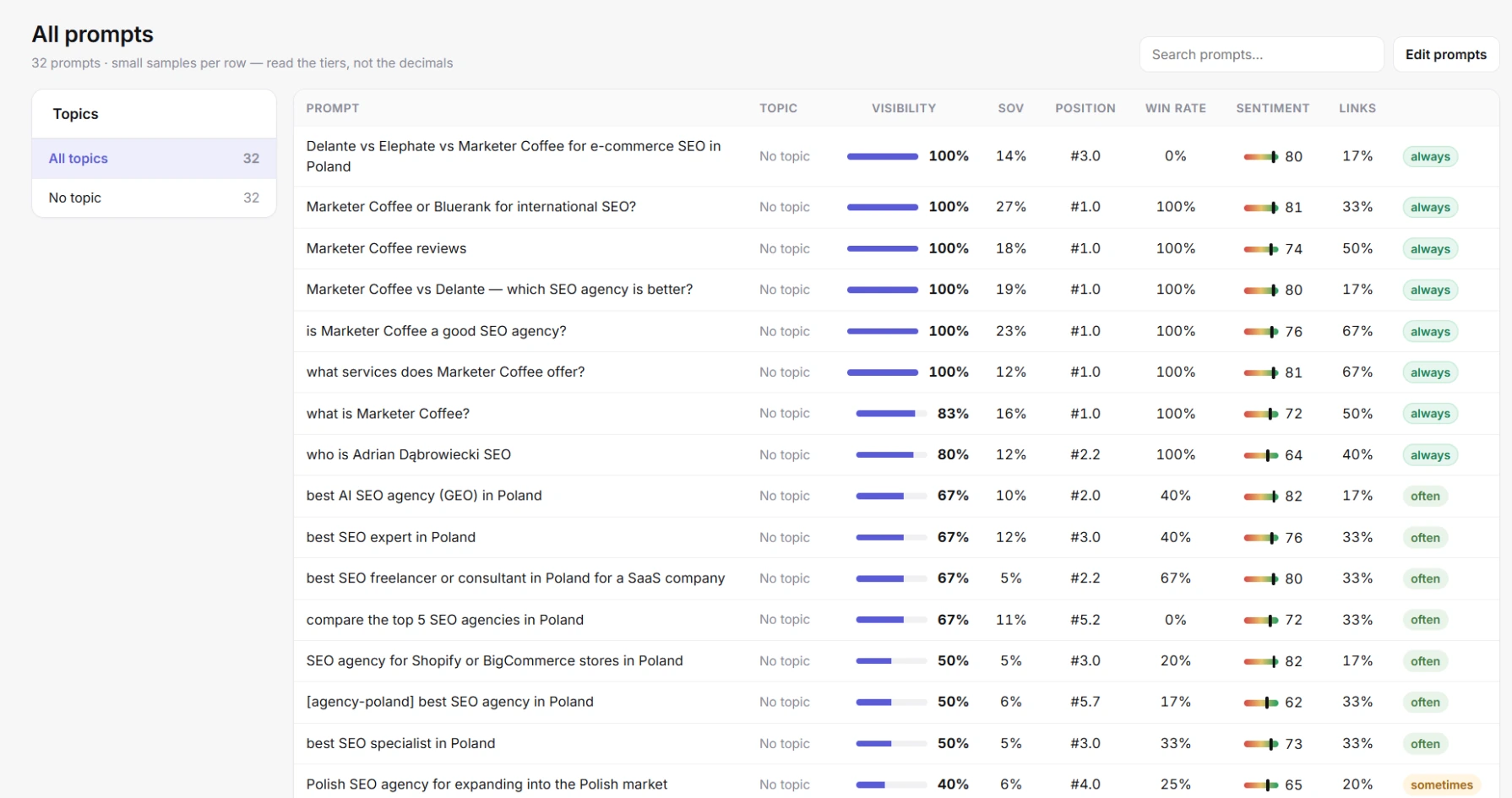
All prompts: one row per prompt, filtered by topic on the left
- Filter by topic in the left column. Search prompts with the search box.
- Click a prompt to open its raw answers in Chats.
- Links is the share of answers to the prompt that link to your site.
- Each row gets a tier: always (visibility 80% or more), often (50% or more), sometimes (above 0%) or never.
Each prompt has a small sample per wave. Read the tiers, not the decimals.
Discovery: find new prompts
Discovery suggests new prompts worth tracking, built from your brand profile, the searches AI runs behind your prompts and the questions people search on Google and Bing.
Prompt suggestions
- Open Discovery and click Generate prompts. You can leave the page while it runs.
- Suggestions appear grouped by topic. Each one can carry a short reason.
- Click Activate to start tracking a suggestion, or the cross to reject it. Use Activate all or Reject all for the whole list.
Activation respects your plan. If the list is longer than the room left, AI Tracker activates as many as fit and says that the plan limit is reached. A dot next to Discovery in the menu means there are new suggestions.
Import questions from Search Console and Bing
The import turns real search queries from your Google Search Console and Bing Webmaster Tools into prompt suggestions.
- Connect Search Console or Bing for the project first.
- In Discovery, click Import from Search Console & Bing.
- AI Tracker pulls long, question-like queries from the last 90 days. By default it keeps queries of 4 or more words that start with words like how, what, which, why, where, when, who, is, can, should or does.
- New questions appear under “From Google Search Console” or “From Bing”, with impressions, clicks and average position.
Questions you already track or already have as suggestions are skipped. These queries are real demand, so they make strong prompts.
Custom regex
A custom regex replaces the default question filter for one import.
Open Custom regex next to the import button and enter a pattern, for example ^(how|best|which)\b. Only queries that match are imported. If the pattern is not valid, AI Tracker tells you and imports nothing.
Running checks
A wave is one round of checks: every active prompt is asked in every selected model, and the answers are analysed.
Daily tracking
Paid plans and the trial run one wave a day, automatically. New prompts and model changes are picked up by the next daily wave, within 24 hours. When a plan or trial ends, tracking stops and your data stays.
Manual runs
A manual run starts an extra wave now, on top of daily tracking.
- Click Run wave in the top bar. The button shows how many manual runs are left this month.
- The status shows queued (it starts within about 5 minutes), then collecting.
- When the wave is done, it appears in the wave selector.
Basic includes 2 manual runs a month, Growth 5 and Scale 10. The trial includes 1. Use them after you publish new content or change a page you want AI to cite.
When data appears
- The free snapshot takes about 10 minutes.
- A wave takes longer with more prompts and models. While it runs, the top bar shows collecting.
- Trend charts and changes vs the previous wave appear once there is data from a second day.
- Movers on Domains and URLs show changes from the second wave on.
Wave, model and tag filters
The top bar filters every report by wave, AI model and prompt tag.
Pick a wave by date to see an older result. Click model chips to see one model, or All models. Click tag chips (Brand, Category, Comparison, Problem) to see one prompt type. The filters carry over when you switch pages.
Metrics glossary
AI Tracker measures six things for every brand: visibility, share of voice, position, sentiment, citations and win rate.
| Metric | What it means | How it is calculated |
|---|---|---|
| Visibility | How often AI mentions the brand when your prompts are asked. | Answers naming the brand ÷ all answers. 40% = named in 4 of 10 answers. |
| Share of voice (SoV) | Your share of all brand mentions, compared with every other brand named. | Mentions of your brand ÷ mentions of all brands in the answers. AI platforms themselves are not counted as brands. |
| Position | Your average place when AI names several brands. #1 means named first. | Average rank of the brand in the list of brands, over the answers that mention it. Lower is better. |
| Sentiment | The tone of answers that mention the brand, from 0 to 100. | Each mention is scored from negative to positive and rescaled to 0 to 100. 50 is neutral. |
| Citation rate | How often AI uses your own pages as a source. | Answers citing your domain (or another domain you own) ÷ all answers. |
| Win rate | How often you beat competitors in the answers where any of you appears. | Answers where you are named before every tracked competitor present, or named with no competitor, ÷ answers naming you or a competitor. |
| Recommendations | How often AI picks the brand as its top choice. | Answers where AI names the brand first, as its top pick. |
The Ranking page also shows a range next to visibility, for example 32% 24–41. It is the 95% confidence interval. With few answers the range is wide. Changes of up to 10 points between waves are normal noise.
Overview dashboard
The Overview is the project dashboard: your headline metrics for the selected wave, the top brands, the trend and what to do next.
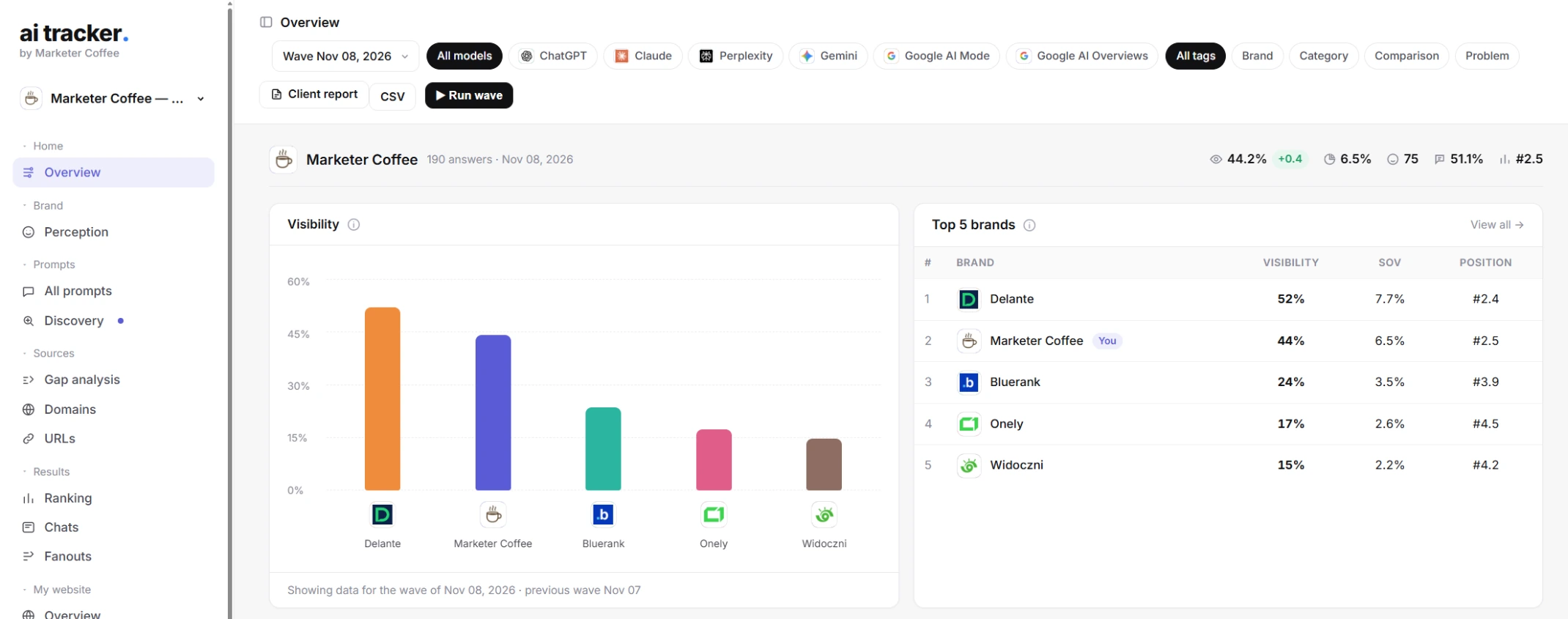
Overview: headline metrics, visibility chart and top brands
The header shows your visibility (with the change vs the previous wave), share of voice, sentiment, citation rate and position. Hover each figure for its definition. The cards below are:
- Visibility. A bar chart of the top brands by visibility.
- Top brands. The leading brands with visibility, SoV and position. “View all” opens Ranking.
- Trend. Each metric wave by wave. Switch between Visibility, Sentiment, Position and Citations. Your brand is the thick line.
- Performance matrix. The share of answers in each topic that name each brand. Darker means stronger.
- Top domains. The sites AI cited most. The number is the count of answers citing the domain.
- Domain types. Citations by type of site: your domains, competitors, reviews and listings, community and social (Reddit, LinkedIn, YouTube) and editorial and blogs.
- Recent chats. The latest answer per prompt and model, with the brands named and the sites cited.
- Recommended actions. Next steps from this wave, for example low visibility, a competitor ahead of you, a low citation rate or sentiment below neutral.
In the performance matrix, look for columns where competitors are dark and you are light. Those topics are your content priorities.
Ranking
Ranking lists every brand AI names in answers to your prompts, not only the competitors you defined.
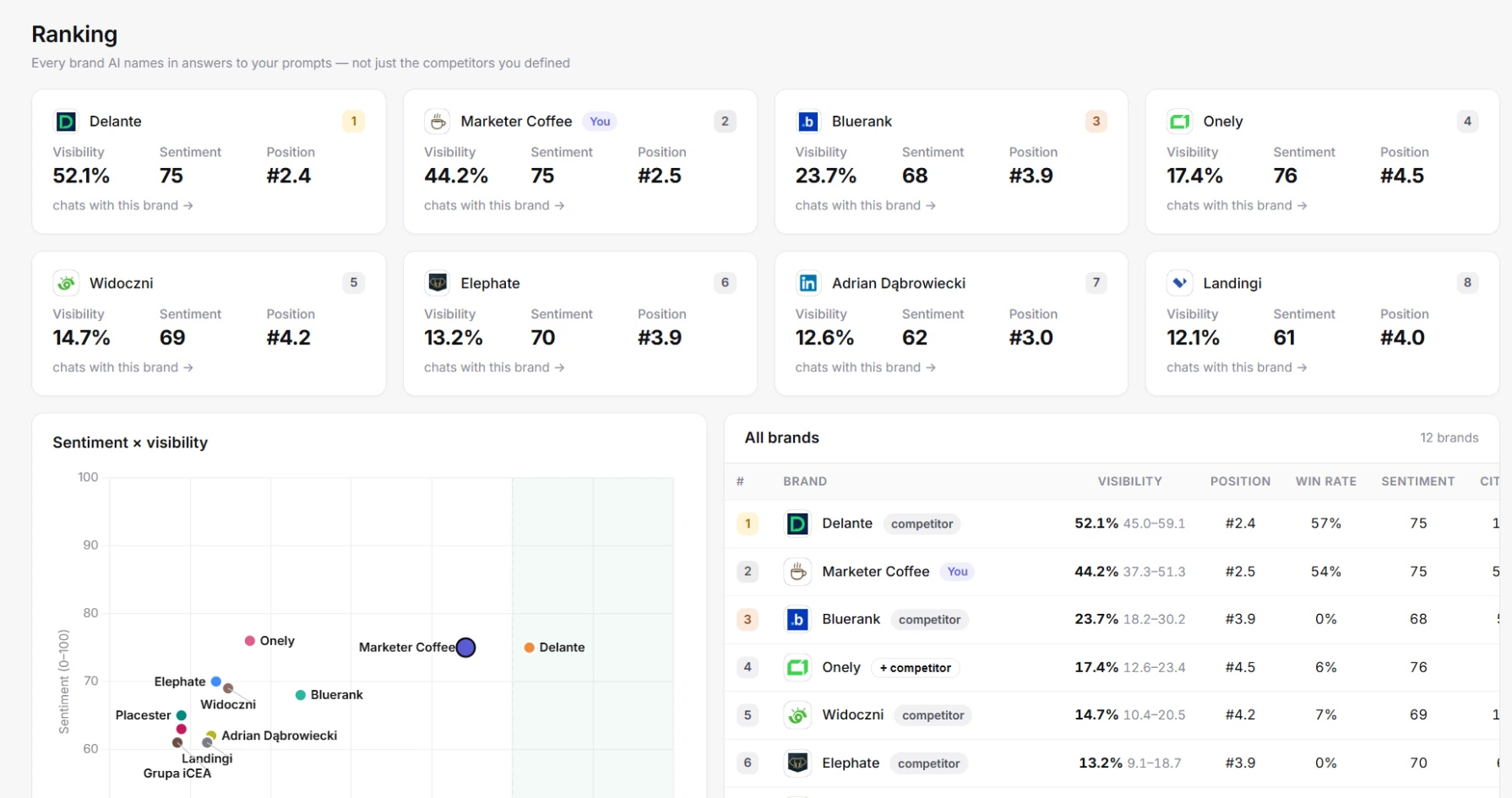
Ranking: brand cards, sentiment by visibility chart and the full table
- Brand cards. The top 8 brands with visibility, sentiment and position. Each card links to the chats with that brand.
- Sentiment × visibility. A scatter chart with four areas. Leaders are visible and well rated. Controversial brands are visible but poorly rated. Niche brands are rare but positive. Laggards are rare and poorly rated.
- All brands. Every brand with visibility and its range, position, win rate, sentiment and citation rate.
Ranking finds competitors you did not know about. Click + competitor next to a brand to add it to the project. From then on it is tracked as a competitor in every report.
Chats: raw AI answers
Chats shows every raw answer AI gave to your prompts, with the sentence where the model picked you or a competitor.
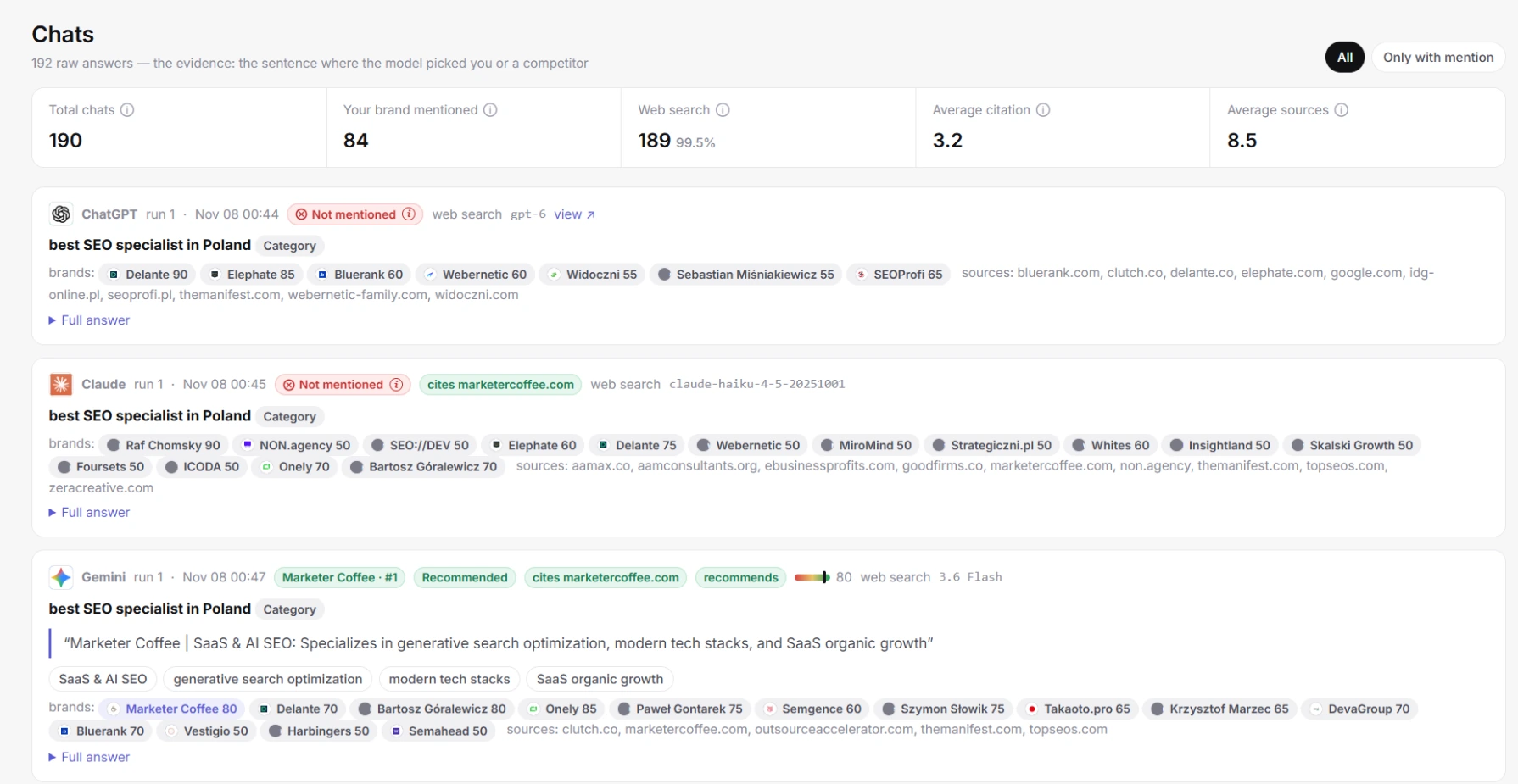
Chats: each answer with its tags, quote, brands and sources
The strip at the top shows total chats, chats that mention your brand, chats with web search, the average number of citations inside an answer and the average number of sources retrieved per chat.
Each answer shows tags:
- Your brand and its position, or Not mentioned.
- How you were mentioned: Recommended (a direct pick), Compared (next to a competitor), Listed (one of many options), In passing (just an example) or Negative (advised against).
- Whether the answer cites your domain and whether it recommends you.
- The sentiment score, whether web search was used, the model version and a link to view the answer.
Below the tags you see the quote about your brand, the traits AI attributed to you, every brand named with its own sentiment, and the sources. Click Full answer to read the whole answer as the model showed it.
“What to do” advice
A red tag with an “i” opens advice for one answer: why you are missing and what to do.
Hover or tap the tag. The advice lists the reasons, the actions to take and articles to read. Use Only with mention to see the answers that name you. Open Chats from a prompt or a brand to filter to that prompt or brand.
Query fan-outs
Query fan-outs are the background searches AI engines run behind your prompts before they write an answer.
Write content that answers these exact queries. The page shows:
- Distinct query fan-outs, total occurrences, chats with fan-outs and the top term.
- Terms. Word pairs in the fan-out queries, ranked by occurrences. Use them in headings and FAQs.
- Brands. Tracked brands the engines name inside their own searches. A branded fan-out means AI is checking that brand directly.
- All queries. Every fan-out query grouped by topic, marked Search or Branded, with the model that ran it.
Fan-outs appear only when the engine searched the web and reported its queries. If a wave has none, the page says so.
Perception
Perception shows how AI describes your brand and your market, which doubts it raises and whether it gets your facts right.
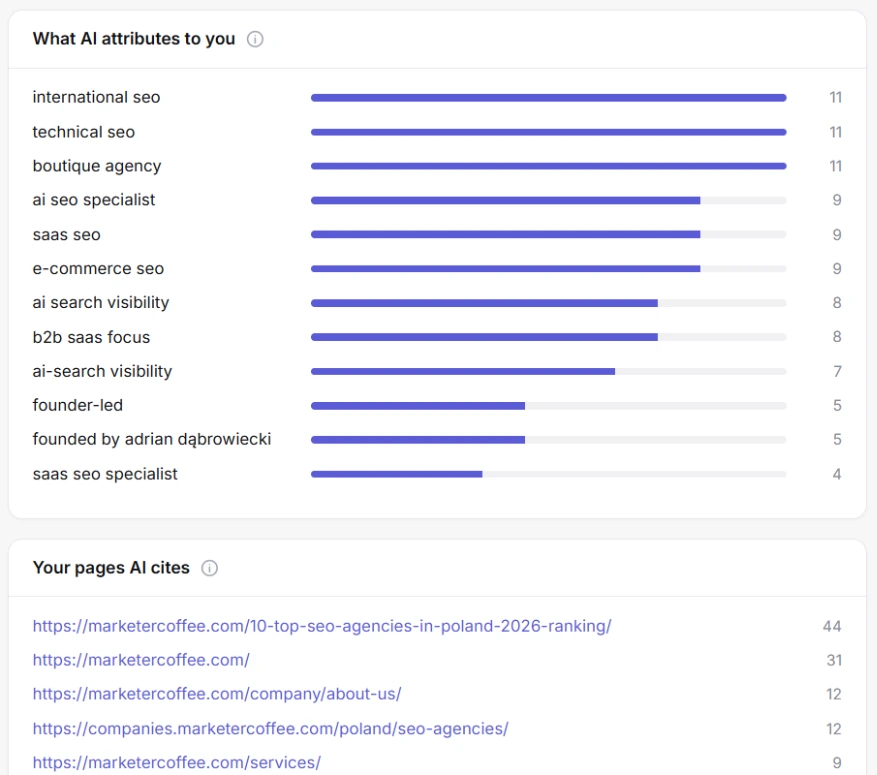
Perception, Brand tab: what AI attributes to you
Brand
The Brand tab compares your brand profile with what AI actually says about you.
- Your brand profile. How you described the brand in onboarding.
- What AI attributes to you. Traits AI used when it named the brand. The bar shows how often.
- How you are mentioned. The split of Recommended, Compared, Listed, In passing and Negative, with sentiment, visibility and citation rate.
- Your pages AI cites. Your URLs AI used as sources. Keep them updated and link your offers from them.
- Most positive mentions and Weak spots. The most favourable sentences, and the lukewarm or negative ones.
Market
The Market tab shows who AI recommends in your category, what it tells buyers to compare and where it places your brand.
Click Analyze this wave. AI Tracker reads the answers of the selected wave and writes a market summary, your position, the leaders AI recommends with the reason, and the criteria buyers are told to compare. Make sure your site answers each criterion clearly.
Objections
The Objections tab lists the doubts and downsides AI raises about your brand, with the quote and a fix.
Click Analyze this wave. Each objection gets a severity (high, medium or low), the quote, a suggested fix and the number of answers it was seen in. Publish content that answers the objection so AI stops repeating it.
Fact-checking
Fact-checking compares the facts you provide with what AI says, and marks each one Correct, Wrong or Missing.
- In the Fact-checking tab, write up to 20 facts, one per line. For example: “Plans start at $79 per month.”
- Or click Build facts with AI to draft them from your site. Review and click Save facts.
- Click Check facts. Each fact is marked Correct (AI states it in line with yours), Wrong (AI contradicts it) or Missing (no answer mentions it), with what AI said.
- Read Other claims AI makes about you. These are not in your list. Check that they are true.
Wrong facts usually come from an old page or a third-party listing. Find the source in Chats, then fix the page or ask the site to update it.
Gap analysis
Gap analysis shows where competitors win in AI answers and which sources put them there.
You vs competitors
A table of your brand and each competitor with three counts: Mentions (answers that name the brand), Citations (answers that use the brand’s own website as a source) and Recommendations (answers where AI names the brand first, as its top pick). Each count also shows its share of all answers.
Domain gaps
Domain gaps are sources AI used in answers that named competitors but not you.
- Gaps. Answers citing the domain where competitors appeared and you did not.
- Used. All answers citing the domain.
- Retrieved. The share of all answers that cite the domain.
- You appear. The share of answers citing the domain that also name you.
- Competitors there. The competitors named next to that source.
These pages already shape the answers in your category. Getting listed, reviewed or quoted there is the most direct way in. Start with the domains at the top of the list.
Domains and URLs
Domains
Domains lists every site AI cites when answering your prompts: the places worth earning a mention, ranking or comparison.
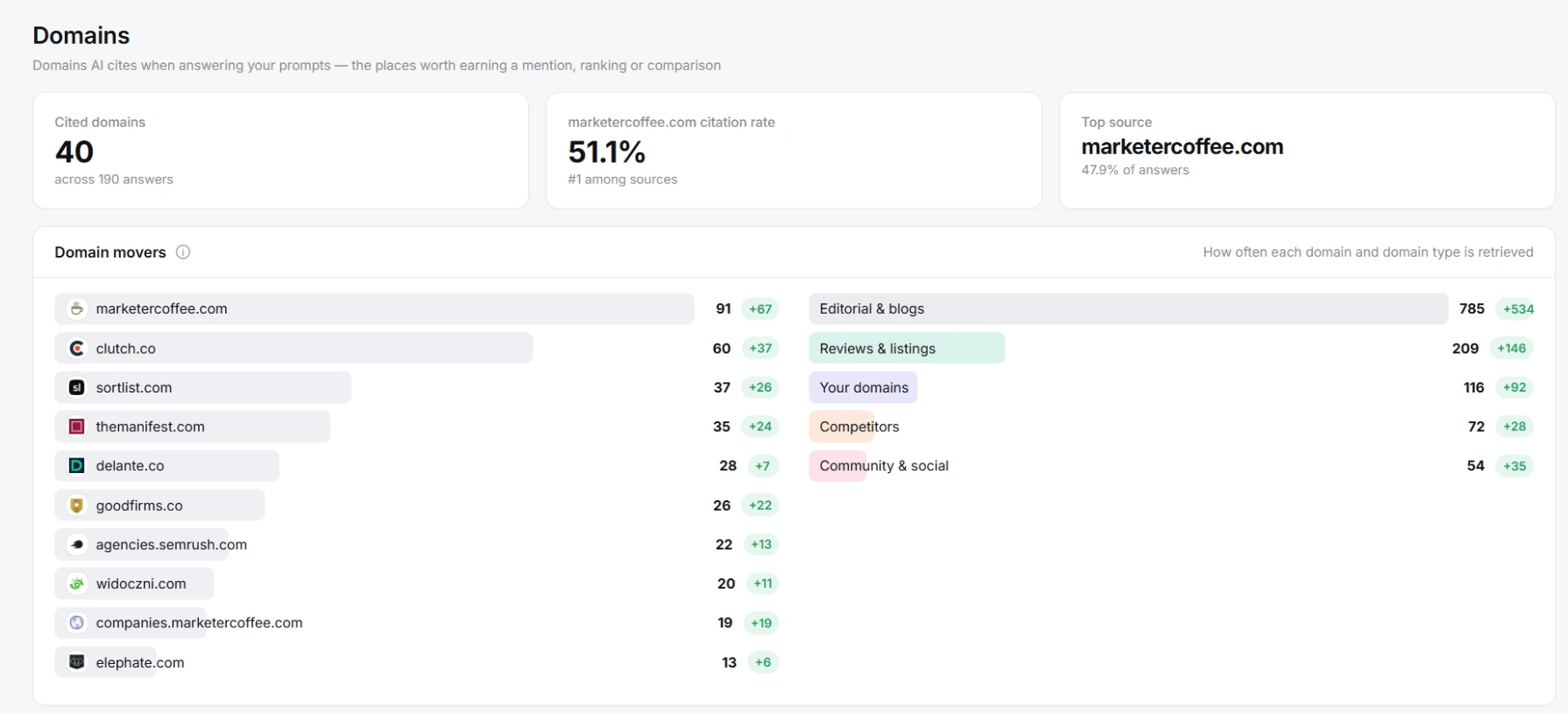
Domains: cited sites with type, share of answers and models
- The cards show the number of cited domains, your domain’s citation rate and rank among sources, and the top source.
- Domain movers. How often each domain and domain type was retrieved in this wave. Green or red numbers show the change vs the previous wave.
- The table shows each domain with its type, the share of answers that used it, the models that cited it and its top URLs.
Click a domain to open its detail page. It shows retrievals (total URL fetches from the domain), used as a source (share of chats that used at least one of its pages), retrieval rate (average number of its URLs per chat that used it) and how often your brand was named next to it. It also lists its URLs and chats.
URLs
URLs lists every page AI used as a source for your prompts, with its type and how often it was retrieved.
- Top URLs. The pages AI fetched most often in this wave, with the change vs the previous wave.
- URL types. What kind of pages AI pulls: homepages, listicles, comparisons, how-to guides, product pages, articles, profiles, videos, discussions and reviews. This tells you which format to publish.
- Social channels. How often URLs from YouTube, LinkedIn, Reddit and other networks are retrieved, by channel.
- URLs table. Each page with URL type, domain type, brand mentioned (share of chats using the URL where AI also named you), retrieved (share of all chats using the URL), models and position (average place in the list of sources, lower is better).
Click a URL for its detail page: retrievals, share of chats, citation position, number of prompts, retrievals by model, and the prompts and chats that used it.
Your website
The My website section connects AI answers with your own data: the pages AI uses, the visits AI sends and how the same pages rank on Google and Bing.
My website overview
The overview shows used as a source (share of chats where AI used at least one page from your domain), cited without a mention, AI sessions, key events from AI and Google clicks. A table lists each page with AI retrievals, prompts, models, AI sessions, key events, Google clicks and Google position.
“Cited without a mention” counts chats that used your page but did not name your brand. These are easy wins: make the brand visible on those pages.
AI referrals (Google Analytics 4)
AI referrals shows the sessions, engagement, key events and revenue that AI assistants send to your site, from your GA4 property.
- Open AI referrals and click Connect Google. Sign in with the Google account that has access to the GA4 property.
- Allow read-only access to Analytics. Nothing is written back.
- Choose the GA4 property for the project.
The page shows AI sessions with the change, share of all sessions, key events and revenue (if e-commerce tracking is on) for the last 30 days. It splits sessions by assistant (ChatGPT, Perplexity, Gemini, Copilot, Claude, DeepSeek, Meta AI, Grok, Mistral and others) and lists the landing pages AI sends people to. One Google account connects per workspace. You can disconnect any time.
Search Console
The Search Console page puts Google clicks, impressions and average position for your pages next to the pages AI cites.
- Click Connect Google and sign in. Access is read-only.
- Choose the Search Console property.
You see clicks and impressions with the change, pages with clicks, and how many of those pages AI cited in the selected wave. A chart shows clicks and impressions over time. Top pages lists clicks, impressions, CTR, position and whether AI cites the page. Top queries lists your search queries. Use the long questions as prompts through Discovery. Google finalises search data after about three days.
Bing and Copilot
The Bing page shows clicks, impressions and positions on Bing, the search index behind Microsoft Copilot, next to the pages AI cites.
- Open bing.com/webmasters and sign in. You can import your sites from Google Search Console in one click.
- Click the gear icon (Settings), then API access, then API key, then Generate.
- Copy the key, paste it on the Bing page in AI Tracker and click Connect Bing. AI Tracker checks the key.
- Choose the Bing site for the project.
The key is used read-only, to download your search statistics. The page then shows the same blocks as Search Console: clicks, impressions, pages with clicks, pages cited by AI, top pages and top queries. Use Disconnect Bing to remove the key.
AI performance uploads
AI performance shows how often Google AI Overviews and AI Mode, or Microsoft Copilot and Bing AI, show or cite your pages, from the report you export.
Google and Bing do not share these reports through their APIs yet, so you upload the export.
- Google: in Search Console open Performance, then Generative AI. Click Export, then Download CSV. You get a zip file.
- Bing: open AI Performance in Bing Webmaster Tools. Click Export on the chart, on the grounding queries and on the pages.
- On the Search Console or Bing page in AI Tracker, drop the zip or CSV files in the AI performance box and click Upload.
AI Tracker shows the total impressions or citations, the number of cited pages, the grounding queries (searches the AI ran that led to your pages), the top page, a daily chart, and tables of pages and grounding queries. It also shows the upload date. Upload a newer export to refresh, or click Remove.
Agent analytics
Crawlability
Crawlability checks your robots.txt and shows which AI bots may fetch your pages.
- Make sure the brand domain is set in project settings.
- Open Crawlability and start the check. It runs in the background. You can switch pages.
The result shows whether robots.txt was found, how many AI bots are allowed, how many are blocked, how many search and user bots are blocked, and the number of URLs in your sitemap. A table lists each bot with its company, type (Training, Search or User query), the matching rule and its access to your homepage. The URL tester checks any path against your current robots.txt.
Search and user bots fetch pages live when someone asks an AI. Blocking them means AI cannot cite you. Blocking training bots is a separate choice.
Agent readiness
Agent readiness audits your site the way AI crawlers and assistants read it, and places it on one of four levels.
The audit fetches your pages the way AI crawlers do. It usually takes under a minute and also checks competitor homepages. The levels are:
- Reachable. Agents can fetch your pages without being turned away. Checks include a valid robots.txt, AI agents not blocked and AI bot requests getting through.
- Findable. Agents can discover every page worth reading. Checks include a declared and valid sitemap, real sitemap dates, no soft 404s, one canonical URL and navigation that works without JavaScript.
- Readable. Agents can understand what a page says and who it is from. Checks include readable text in the raw HTML, valid JSON-LD and Organization schema. Optional checks cover titles, language, meta descriptions, Open Graph, alt text, headings, a main landmark, snippets and .md versions of pages.
- Operable. For apps and APIs that agents sign in to or call.
Each check is Passing, Needs work or Not in place. Click a check to see what AI Tracker saw, why it matters and how to fix it. Scored checks decide your level. Optional checks are worth fixing but do not change it. The top card shows what to clear to unlock the next level, and the “Competitors passing” column shows how rivals do on the same check. Files such as llms.txt sit in a separate corner, because no AI assistant has confirmed it reads them, so they never change your level.
Reports and sharing
PDF client report
The client report is a branded A4 report of the selected wave that you save as a PDF.
- Pick the wave and filters in the top bar, then click Client report.
- The report opens in a new tab. Click Download PDF.
- In the print window choose “Save as PDF” and turn on “Background graphics”.
The report has a cover with the key numbers and five parts: Scorecard (where the brand stands in AI answers), Competition (who AI recommends in your category), Sources (where AI gets its answers), Perception (what AI says about the brand) and Next steps (what to do to show up more often).
Read-only share link
The share link opens a read-only version of the project for clients or colleagues without an account.
Copy the client link at the top of project settings. People with the link see the reports and the client report, but cannot change anything or run waves. Click new link to create a new one. The old link stops working at once.
CSV export
The CSV export downloads every raw answer of the selected wave as a spreadsheet file.
Click CSV next to Client report. The file is UTF-8 and semicolon-separated. Columns include the date, model, repeat, prompt tag, prompt, status, brand mentioned, brand position, brand cited, recommended, sentiment, brands named, brand sentiments, cited domains, the brand quote, a check link and the full answer text.
Team members
Team members are extra logins that share your account’s projects and plan.
- On the welcome screen, type a teammate’s email and press Enter. Add as many as you need, up to 20 at a time.
- Click Send invite. AI Tracker creates a login for each person and shows the password once.
- Send each teammate their email, password and the sign-in page link.
Teammates see the same projects. The plan comparison lists team members on Growth and Scale.
Billing
AI Tracker bills monthly or yearly by card, with a 7-day free trial on your first subscription.
- Trial. Your first subscription starts with 7 free days. The card is collected at checkout. Cancel before day 8 and you pay nothing. After the trial you continue on the plan you picked.
- VAT. Prices are in USD without VAT. VAT is added at checkout where it applies. EU companies with a valid VAT ID pay no VAT (reverse charge). Enter your billing address and VAT ID at checkout.
- Yearly. Switch the pricing page to Yearly. You pay 10 months and get 12.
- Promo codes. Enter a code at checkout if you have one.
- Upgrade or downgrade. Move up a plan at any time. The price difference is prorated.
- Manage billing. On the pricing page, click Manage billing to manage your subscription, card and invoices, or to cancel.
- Cancel. Your plan runs until the end of the paid period. After that your projects turn read-only: your data stays and tracking stops. Pick a plan again to continue.
If you need more than Scale, write to us and we set up a bigger plan.
FAQ and troubleshooting
These are the questions we answer most often about AI Tracker, from first setup to billing.
How do I track brand visibility in AI search?
Create a project with your domain, brand, country and language. Add the questions your buyers ask as prompts, pick 3 AI models and save. AI Tracker asks every prompt once a day in each model and reports how often your brand is mentioned, at which position, with what sentiment and which sources AI cites.
How long until I see data?
The free snapshot takes about 10 minutes. On a paid plan or trial, new prompts are picked up by the next daily wave within 24 hours, or right away when you click Run wave. Trends and changes vs the previous wave appear once there is data from a second day.
Why did my visibility change since yesterday?
AI answers vary from day to day, and each prompt has a small sample per wave. Changes of up to 10 points between waves are normal noise. Look at the trend over several waves and at the confidence range on the Ranking page.
Why does Claude count as two models?
Claude is asked through a paid API with web search turned on, which costs several times more per answer than the other models. So Claude takes 2 of your 3 model slots, for example Claude plus ChatGPT.
Why does a page say No finished waves yet?
The project has no completed wave yet. Wait for the first daily wave, or click Run wave in the top bar. While a wave runs, the top bar shows queued or collecting.
Why is my brand not detected in an answer?
AI may use a different spelling, an abbreviation or a product name. Add these as brand aliases in project settings, save, then use Re-run extraction on last wave. AI Tracker re-reads the answers it already has without collecting them again.
Why is the Fanouts page empty?
Fan-out queries appear only when the engine searched the web and reported its queries. If no model did that in the selected wave, the page has nothing to show.
Why do I see no Google Analytics or Search Console data?
Connect Google on the AI referrals or Search Console page and choose the property for the project. For AI referrals, Google must also allow Analytics access; click Reconnect Google to allow Analytics if asked. Google finalises search data after about three days.
Bing did not accept my API key. What now?
Copy the key again from Bing Webmaster Tools, Settings, API access, and paste it without spaces. AI Tracker checks the key with Bing before saving it.
I used all my manual runs. Does tracking stop?
No. Manual runs are extra waves on top of daily tracking. Daily tracking keeps going. Manual runs reset every month: Basic has 2, Growth 5, Scale 10 and the trial 1.
Can I split my prompts across projects?
Yes. Prompts belong to your whole account, so on Growth you can track 100 prompts for one brand and 50 for another.
What happens to my data if I cancel?
Your plan runs until the end of the paid period. After that your projects turn read-only. Your data stays and tracking stops. Pick a plan again to continue.
Do prices include VAT?
No. Prices are in USD without VAT. VAT is added at checkout where it applies. EU companies with a valid VAT ID pay no VAT under the reverse charge.
Ready to see how AI talks about your brand? Start with a free snapshot of 5 ChatGPT questions. No card needed.
Start free →